

¿Tiene el iPhone 13 eSIM? Cómo añadir una antes de viajar

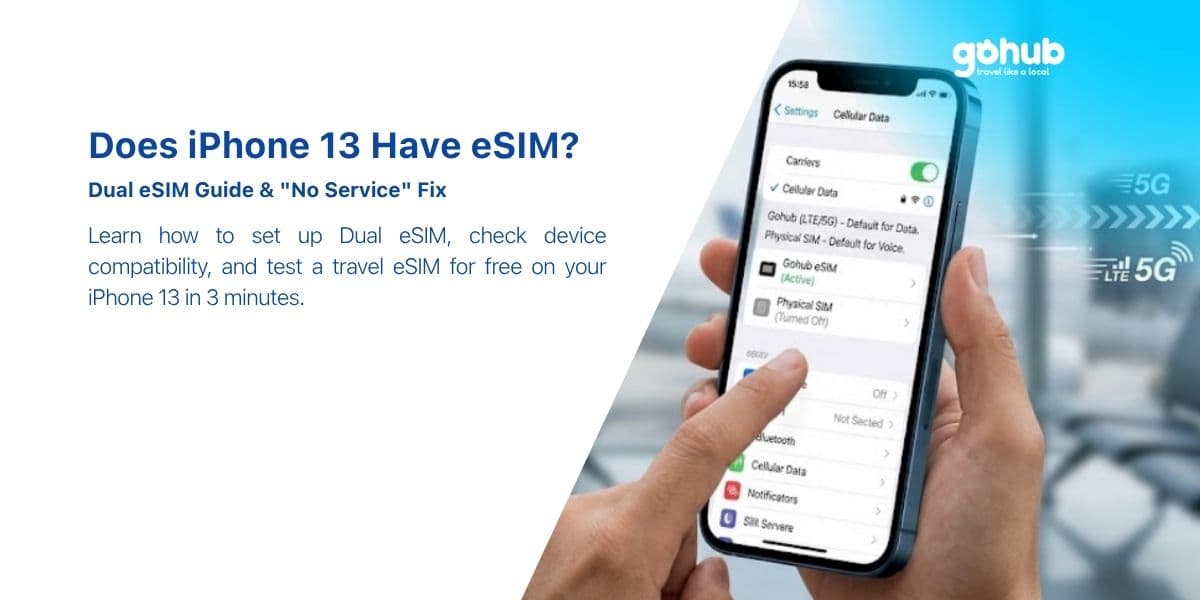
Sí. Los iPhone 13, 13 mini, 13 Pro y 13 Pro Max tienen una eSIM, y la generación del iPhone 13 es la primera que puede ejecutar dos eSIM al mismo tiempo. Ese único cambio es lo que lo convierte en el iPhone más flexible jamás lanzado para viajar: puedes mantener un perfil de casa y un perfil de viaje activos, sin tocar la bandeja SIM.
Las excepciones son las mismas que en cada generación reciente: las unidades vendidas en China continental no tienen eSIM en absoluto, y los modelos estándar y Pro vendidos en Hong Kong y Macao se envían con dos ranuras físicas para nano-SIM en su lugar. Todo lo que sigue asume un modelo global.
Respuesta rápida
· Soporte eSIM: sí, en los cuatro modelos de iPhone 13.
· Dos eSIM activas: sí — una novedad para iPhone, con iOS 16 o posterior.
· Otra combinación compatible: una nano-SIM + una eSIM.
· Perfiles almacenados: ocho o más; dos activos a la vez.
· Tiempo de instalación: unos tres minutos por Wi-Fi.
· Bloqueado por: un bloqueo de operador, o un modelo de China continental / Hong Kong / Macao.
Para confirmar tu unidad exacta, consulta la página del iPhone 13 en nuestra base de datos de dispositivos o pásala por el verificador de dispositivos.
El iPhone 13 es la primera generación que ejecuta DOS eSIM activas
Antes del iPhone 13, un iPhone podía almacenar muchos perfiles eSIM pero activar solo uno a la vez. Con iOS 16 en un iPhone 13, dos perfiles eSIM pueden estar activos simultáneamente — ambos registrados, ambos capaces de recibir llamadas y mensajes de texto, y uno de ellos llevando datos.
Por qué esto importa cuando viajas:
· Viajes a varios países. Un plan regional para todo el viaje más un plan local para el país con la mejor cobertura — activos al mismo tiempo, cambiados con dos toques en lugar de una reinstalación.
· Teléfonos sin bandeja SIM. Si más tarde te pasas a un iPhone 14 americano o más reciente, que no tiene ranura física, el hábito de la doble eSIM ya será tuyo.
· Líneas de casa digitales. Muchos operadores ahora emiten el número de casa como una eSIM. En un iPhone 13 puedes mantener esa y una eSIM de viaje juntas, y dejar la bandeja vacía.
· Trabajo y personal. Dos números, un teléfono, sin malabares.
Dos cosas que la función no hace: no permite que ambas líneas usen datos a la vez (el iPhone sigue siendo Dual SIM Dual Standby — una línea de datos a la vez), y no requiere hardware específico de iOS 16, solo el sistema operativo. Si tu iPhone 13 todavía está en iOS 15, actualiza antes del viaje.
Dos eSIM vs nano-SIM más eSIM — qué configuración elegir para un viaje
Ambas funcionan. La respuesta correcta depende de dónde resida tu número de casa.
Configuración | Ideal para | Atención a |
Nano-SIM (casa) + eSIM (viaje) | La mayoría de los viajeros. Tu SIM física existente permanece exactamente donde está; nada cambia en tu línea de casa. | Recuerda desactivar la itinerancia de datos en la línea de casa. |
eSIM (casa) + eSIM (viaje) | Operadores que emiten una SIM digital; personas que odian perder pequeñas tarjetas de plástico; cualquiera que convierta la bandeja en una de repuesto. | Convertir una SIM física de casa a eSIM es un paso unidireccional que controla tu operador — hazlo una semana antes de la salida, no la noche anterior. |
Dos eSIM de viaje | Itinerarios de varios países — por ejemplo, un plan regional Japón-Corea junto con un plan de recarga local. | Solo una lleva datos en cualquier momento; configura la correcta como línea de datos antes de necesitarla. |
Una recomendación práctica de los tickets que ve nuestro equipo de soporte: si tu viaje es a un solo país y dura menos de tres semanas, mantenlo simple — nano-SIM de casa más una eSIM de viaje. Añade la segunda eSIM solo cuando haya una razón para ello.
Almacenar hasta ocho perfiles eSIM y alternar entre ellos
Un iPhone 13 almacena ocho o más perfiles eSIM. Los planes antiguos de viajes anteriores permanecen en la lista y no cuestan nada mantenerlos. El cambio es manual e instantáneo:
1. Ajustes > Datos móviles muestra cada plan instalado.
2. Toca un plan → Activar esta línea / Desactivar esta línea.
3. Con dos líneas activas, establece cuál lleva datos en Ajustes > Datos móviles > Datos móviles.
Dos hábitos de mantenimiento que ahorran mucha confusión: renombra cada perfil en el momento de la instalación ("Japón Nov 10GB" es mejor que "Viaje"), y no elimines un plan que aún tenga validez — es posible que puedas recargarlo en lugar de comprarlo de nuevo. Consulta ¿Cuántas eSIM puedo almacenar en un teléfono? y ¿Cuándo debo eliminar mi eSIM?
Guía de configuración: añadir una eSIM de viaje a un iPhone 13
Haz esto en casa, con Wi-Fi, antes de volar. La instalación del perfil necesita una conexión a internet; el plan en sí generalmente comienza a contar solo cuando la eSIM se conecta por primera vez a una red en tu destino. Las reglas de activación difieren según el tipo de plan, así que consulta ¿Cuándo comienza mi plan eSIM? para el plan que compres. Así que no hay costo por hacerlo temprano, y hay un costo real por hacerlo tarde — consulta ¿Puedo instalar mi eSIM antes de mi viaje?
1. Instalar el perfil
4. Abre Ajustes > Datos móviles > Añadir eSIM.
5. Elige Usar código QR y escanea el código de tu correo electrónico de pedido en un portátil o segunda pantalla.
¿No tienes segunda pantalla? Toca Introducir detalles manualmente y escribe la dirección SM-DP+ y el código de activación del mismo correo electrónico — el resultado es idéntico.
Lo más rápido de todo: instala directamente desde la aplicación Gohub, que omite los códigos por completo.
6. Pon una etiqueta clara a la línea cuando iOS te lo pida.
2. Asignar las líneas
7. Datos móviles → eSIM de viaje.
8. Permitir cambio de datos móviles → DESACTIVADO. Esta es la configuración que evita la itinerancia sorpresa: si se deja activada, iOS puede recurrir a tu línea de casa cada vez que la línea de viaje falle.
9. Línea de voz predeterminada → número de casa, para que las llamadas y los SMS se comporten como de costumbre.
10. Línea de casa → Itinerancia de datos DESACTIVADA.
11. eSIM de viaje → Itinerancia de datos ACTIVADA. Contraintuitivo pero necesario: una eSIM de viaje funciona mediante la itinerancia en redes asociadas.
3. Aterrizar y confirmar
Después de aterrizar, desactiva el modo avión y dale al teléfono entre 30 y 60 segundos para encontrar una red asociada. Si no aparece nada, reinicia una vez. Una versión paso a paso con capturas de pantalla está en Cómo instalar una eSIM y ¿Cómo instalo mi eSIM en el iPhone?
Transferencia rápida de eSIM — mover una línea a un nuevo iPhone
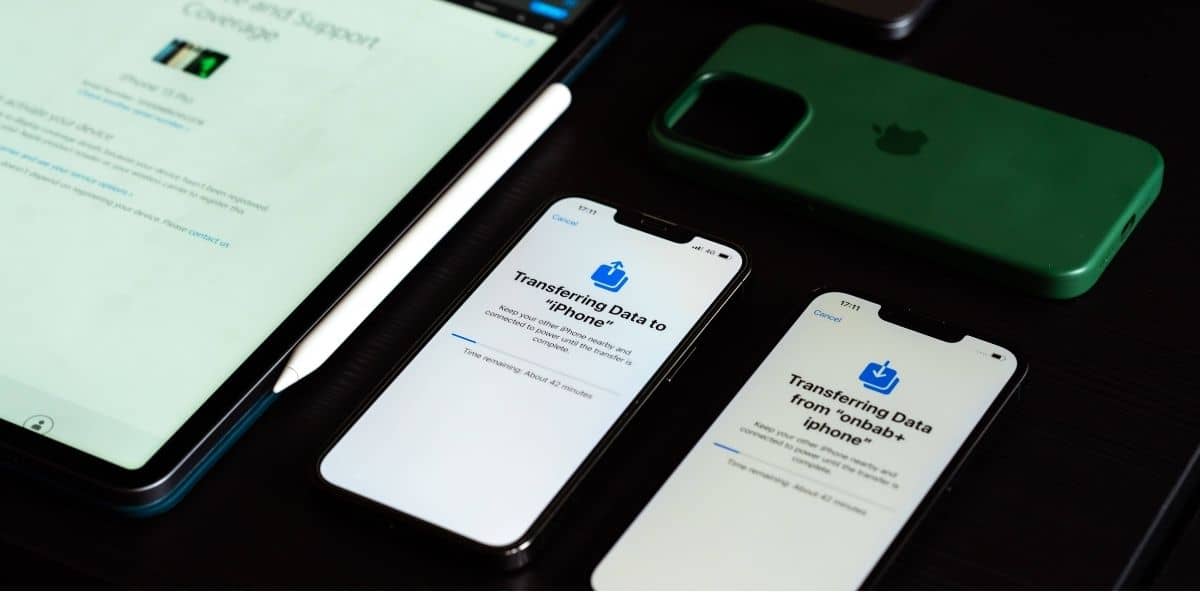
iOS 16 puede mover una eSIM entre dos iPhones cercanos por Bluetooth sin un código QR. Es útil cuando actualizas tu dispositivo y quieres que la línea de casa te siga. Ten en cuenta que el soporte del operador decide si funciona, y la mayoría de los perfiles de eSIM de viaje no se pueden transferir de esta manera — un perfil de viaje está vinculado al dispositivo en el que se instaló. Planifica una actualización antes del viaje, no durante el mismo.
Desactivar los datos de la línea principal para que no pueda hacer roaming
El iPhone 13 te ofrece tres niveles de protección, en orden creciente de paranoia:
12. Itinerancia de datos desactivada en la línea de casa (Ajustes > Datos móviles > [línea de casa] > Itinerancia de datos). Las llamadas y los SMS siguen llegando.
13. Cambio de datos móviles desactivado (Ajustes > Datos móviles > Datos móviles). Impide que iOS tome prestada la línea de casa discretamente.
14. Desactivar la línea de casa por completo (Ajustes > Datos móviles > [línea de casa] > Desactivar esta línea). Nada pasa excepto a través de internet — iMessage, WhatsApp, Zalo y FaceTime siguen funcionando con los datos de viaje.
El Nivel 1 + 2 es lo que la mayoría de los viajeros desean: los OTP bancarios siguen llegando al número de casa mientras que cada byte de datos proviene del plan de viaje. Detalles en ¿Seguiré recibiendo llamadas y SMS en mi número principal mientras uso una eSIM? y ¿Cómo elijo qué SIM gestiona las llamadas y cuál los datos?
Qué hacer si la eSIM muestra "Sin servicio" después de aterrizar
Este es el mensaje más común que recibe nuestro equipo de soporte, y en la gran mayoría de los casos se trata de una de seis cosas. Sigue la lista en orden — te llevará dos minutos.
15. ¿Está la línea activada? Ajustes > Datos móviles > [eSIM de viaje] > Activar esta línea.
16. ¿Está la itinerancia de datos ACTIVADA para la eSIM de viaje? Sin ella, el perfil no puede conectarse a una red asociada. Esta es la causa número uno.
17. ¿Está la eSIM de viaje seleccionada en Datos móviles? Una línea puede estar activada y aun así no ser la línea de datos.
18. Modo avión activado durante 15 segundos, luego desactivado. Fuerza una nueva búsqueda de red.
19. Reinicia el iPhone. Borra un registro obsoleto con más frecuencia de lo que debería.
20. Selecciona la red manualmente. Ajustes > Datos móviles > [eSIM] > Selección de red → desactiva automático → elige una red asociada de la lista.
¿Todavía nada? Dos casos específicos tienen sus propias soluciones: barras de señal pero sin internet (un problema de APN o de línea de datos, no de cobertura) y un plan atascado en "Activando". Todo lo demás está indexado por síntoma en la guía de solución de problemas de eSIM, y el soporte de Gohub responde las 24 horas — vale la pena saberlo antes de necesitarlo, al igual que nuestra política de reemplazo de eSIM en 1 hora.
Antes de comprar: dos cosas que verificar en tu iPhone 13
Bloqueo de operador
Ajustes > General > Información > Bloqueo de operador debe indicar Sin restricciones de SIM. Un iPhone 13 bloqueado tiene hardware eSIM funcional pero rechazará un perfil externo. Si lo compraste de segunda mano o con un plan de pago de operador, compruébalo ahora — el desbloqueo puede llevar varios días al operador. Guía: Bloqueo de operador: cómo verificar y desbloquear tu dispositivo.
Dónde se vendió el teléfono
Desplázate hasta SIM disponible / EID en la misma pantalla. La ausencia de EID significa una variante regional sin eSIM — típicamente China continental, o un modelo estándar o Pro de Hong Kong/Macao. El iPhone 13 mini mantiene la eSIM en Hong Kong y Macao, reflejando al 12 mini. Antecedentes: ¿Importa dónde compré mi teléfono?
Datos: cuánto consume un iPhone 13 en el extranjero
Espera 500MB–1.5GB por día de viaje activo para mapas, mensajería, viajes compartidos, redes sociales y un par de videollamadas — más si transmites video lejos del Wi-Fi. La batería más grande del iPhone 13 hace que la gente lo use más, lo que se refleja tanto en la factura de datos como en el gráfico de la batería.
Tres ajustes que valen diez minutos antes de la salida: Modo de datos bajos en la eSIM de viaje, Fotos de iCloud configurado solo para Wi-Fi, y actualizaciones automáticas de aplicaciones desactivadas. Luego, verifica el uso ocasionalmente — aquí te explicamos cómo. Si no estás seguro de qué tamaño de plan comprar, la calculadora de datos de viaje convierte la duración del viaje y los hábitos en un número, y recargar a mitad de viaje toma aproximadamente un minuto si subestimas.
Costo: eSIM de viaje vs roaming en un iPhone 13
El talento de doble eSIM del iPhone 13 solo vale la pena si el plan detrás de él es más barato que el roaming, lo cual casi siempre es así. La itinerancia del operador de origen se tarifa por día o por megabyte; una eSIM de viaje se tarifa por gigabyte a tarifas locales. Comparamos números reales en Costo de eSIM vs roaming internacional, lo comparamos con la compra de una SIM física local a la llegada en eSIM vs SIM física local, y enumeramos las alternativas en 5 alternativas a los costosos cargos de roaming.

Pruébalo gratis en tu iPhone 13 primero
El mejor uso de una eSIM gratuita no es ahorrar unos pocos dólares — es demostrar que tu teléfono, con tu estado de bloqueo y tu versión de iOS, instala un perfil limpiamente. Hazlo en el sofá esta noche en lugar de en una sala de llegadas a medianoche.
Reclama la eSIM gratuita de Gohub — sin tarjeta de crédito — instálala y observa cómo aparece la línea en Ajustes > Datos móviles. Si quieres comparar lo que realmente se ofrece en el mercado primero, lee Las mejores pruebas de eSIM gratuitas sin tarjeta de crédito y 12 señales de una estafa de eSIM gratuita.
Divulgación: Gohub es nuestro propio producto, así que trata la recomendación en consecuencia. Los datos del dispositivo en esta página son independientes de eso — son válidos sea cual sea el proveedor que elijas.
¿Comprando para un destino específico? Empieza por Japón, Corea del Sur, Tailandia, Singapur, Europa o la lista completa de países.
Preguntas frecuentes
¿El iPhone 13 mini tiene eSIM?
Sí, y es el único modelo de iPhone 13 que mantiene la eSIM en Hong Kong y Macao, donde los modelos estándar y Pro se envían con dos ranuras físicas para SIM en su lugar.
¿Puede el iPhone 13 usar realmente dos eSIM a la vez?
Sí, con iOS 16 o posterior — dos perfiles activos y registrados simultáneamente. Solo uno de ellos lleva datos a la vez.
¿Necesito quitar mi SIM física para usar una eSIM?
No. Mantenla en la bandeja como tu línea de voz principal y deja que la eSIM gestione los datos. Consulta ¿Puedo usar una eSIM y mi SIM física al mismo tiempo?
¿Mi iPhone 13 conservará mi número de teléfono de casa?
Sí. Una eSIM de viaje solo de datos añade internet, no un número — explicación completa aquí.
¿Puedo instalar la eSIM en el aeropuerto sin Wi-Fi?
La instalación necesita una conexión. Si ya estás en la puerta de embarque, usa el Wi-Fi del aeropuerto o el punto de acceso de un compañero, o introduce los detalles de SM-DP+ manualmente a través de cualquier conexión que puedas conseguir. Mucho mejor: instala antes de salir de casa.
¿Funciona una eSIM en un iPhone 13 bloqueado a un operador?
No. El hardware es capaz, pero el bloqueo rechaza los perfiles externos. Comprueba primero el Bloqueo de operador en Ajustes > General > Información.
¿Puedo compartir los datos de viaje con mi portátil?
Sí, a través de Punto de acceso personal — detalles aquí.
Lista de verificación previa al vuelo
21. EID presente en Ajustes > General > Información, Bloqueo de operador = Sin restricciones de SIM.
22. iOS 16 o posterior si quieres dos eSIM activas.
23. eSIM de viaje instalada por Wi-Fi de casa y etiquetada.
24. Datos móviles = eSIM de viaje · Cambio de datos DESACTIVADO · Voz predeterminada = número de casa.
25. Línea de casa Itinerancia de datos DESACTIVADA · eSIM de viaje Itinerancia de datos ACTIVADA.
26. Código QR y detalles SM-DP+ guardados sin conexión como copia de seguridad.
Seis líneas, dos minutos, y tu iPhone 13 estará conectado antes de que llegues a la recogida de equipajes. Empieza con la eSIM gratuita, luego elige el plan para tu destino. ¿Comparando generaciones? Consulta la guía del iPhone 12 y la guía del iPhone SE.

Hi! Chúng mình là Gohub Team Gohub là nhà bán eSIM du lịch hàng đầu Việt Nam và là người bạn đồng hành đáng tin cậy của hàng triệu du khách trong mỗi chuyến đi. Với niềm yêu thích du lịch và công nghệ, team luôn mong muốn mang đến cho bạn những hành trình mượt mà nhất. Chúng mình chia sẻ nhiều mẹo du lịch thực tế, kinh nghiệm được rút ra từ những chuyến đi khắp châu Á đến châu Âu và giới thiệu các giải pháp eSIM tiện lợi để bạn luôn kết nối mọi lúc mọi nơi. Mục tiêu của Gohub Team là giúp bạn tự tin chuẩn bị, thoải mái khám phá và tận hưởng từng khoảnh khắc trong chuyến đi của mình.
Ver todos los artículos →Related articles
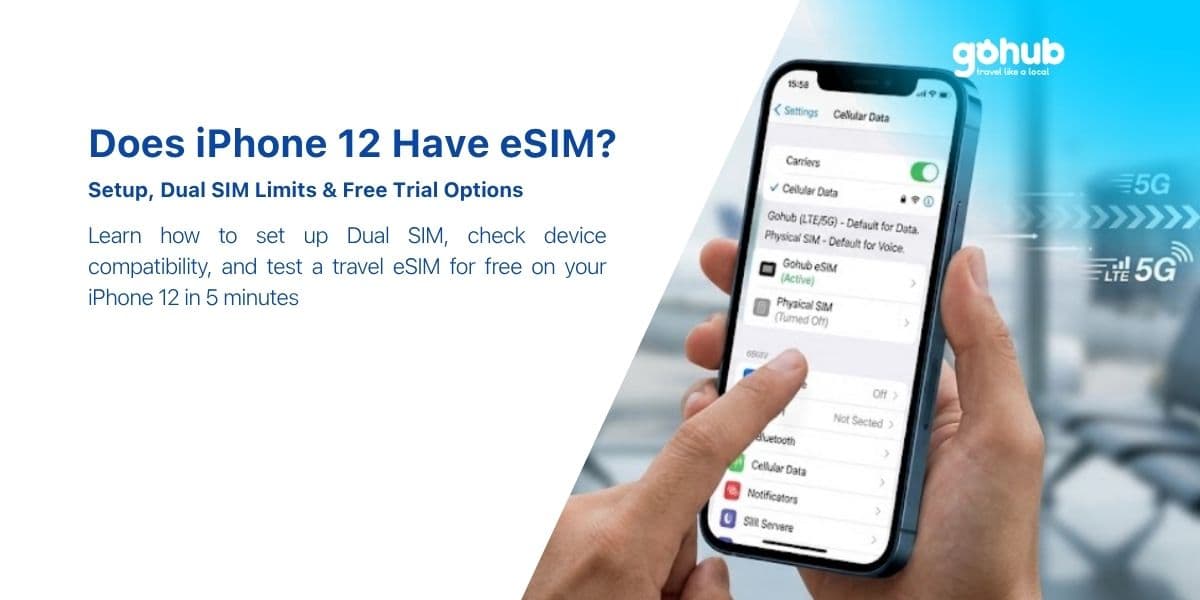
¿Tiene el iPhone 12 eSIM? Configuración, Límites de Dual SIM y Opciones de Prueba Gratuita
Sí, todos los modelos de iPhone 12 son compatibles con eSIM, excepto las variantes de China continental y Hong Kong. Aquí tienes la configuración en 5 minutos, los límites de Dual SIM y cómo probar una eSIM de viaje gratis.
¿Tiene el iPhone SE eSIM? Qué generación necesitas realmente
El iPhone SE de 2ª generación (2020) y el de 3ª generación (2022) son compatibles con eSIM. El de 1ª generación (2016) no lo es, y no hay solución. Aquí te explicamos cómo saber qué SE tienes en tus manos, en 10 segundos.
¿Tiene el Apple Watch eSIM? Modelos Celulares, Operadores y la Realidad del Viaje
Los modelos celulares de Apple Watch tienen una eSIM, pero no puedes instalar una eSIM de viaje en él. Aquí te explicamos qué funciona en el extranjero, qué no, y la configuración que mantiene tu Watch conectado en el extranjero.