

How can I save data usage while traveling?
Here are several ways to reduce data consumption and get the most out of your Gohub eSIM plan:
1. Connect to Wi-Fi whenever possible
Use secure Wi-Fi networks at hotels, cafes, or airports whenever available. This prevents your device from drawing on your mobile data allowance.
2. Restrict background app refresh
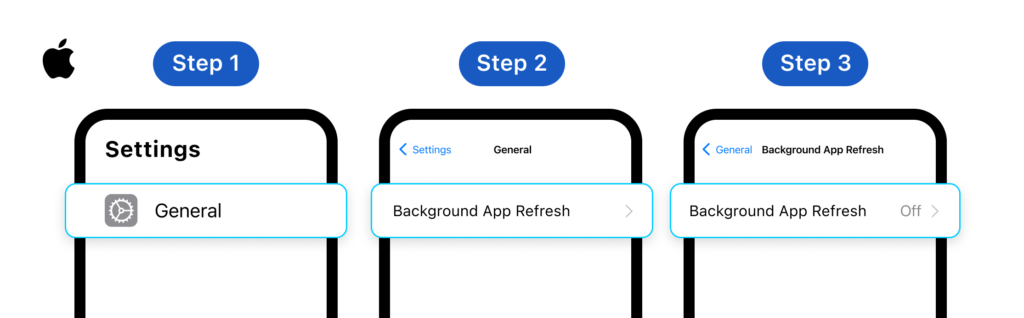
For iOS
- Go to Settings → General → Background App Refresh
- Choose one of the following:
- Off - blocks all apps from refreshing in the background
- Wi-Fi - allows background refresh on Wi-Fi only
- Wi-Fi & Mobile Data - allows background refresh on both connections
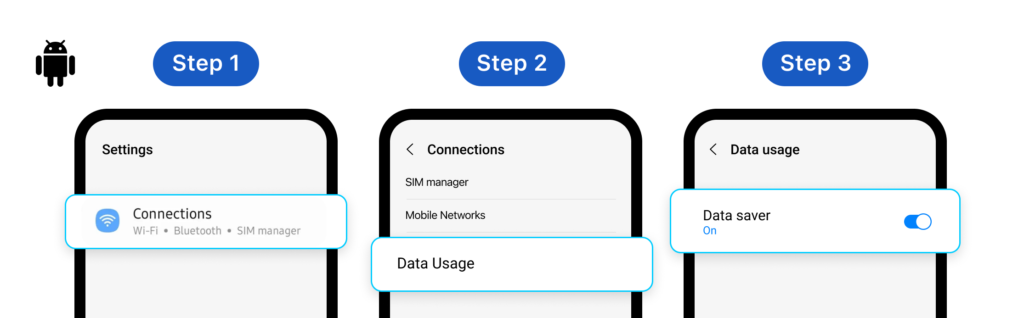
For Android
- Enable Data Saver mode: Settings → Network & Internet → Data Usage → turn on Data Saver
- This prevents background apps from using mobile data automatically.
3. Adjust app-specific settings
- Streaming apps (YouTube, Netflix): reduce video quality in the app's settings
- Social media apps (Facebook, Instagram): disable video autoplay and reduce image quality
- Email apps: switch to manual sync or reduce sync frequency
4. Turn off mobile data when not in use
Toggle mobile data off via your device's quick settings panel when you don't need it - this stops background apps from consuming data silently.
5. Download maps for offline use
Before you travel, download offline maps for your destination in Google Maps or similar apps. This lets you navigate without using any mobile data.
6. Update apps over Wi-Fi only
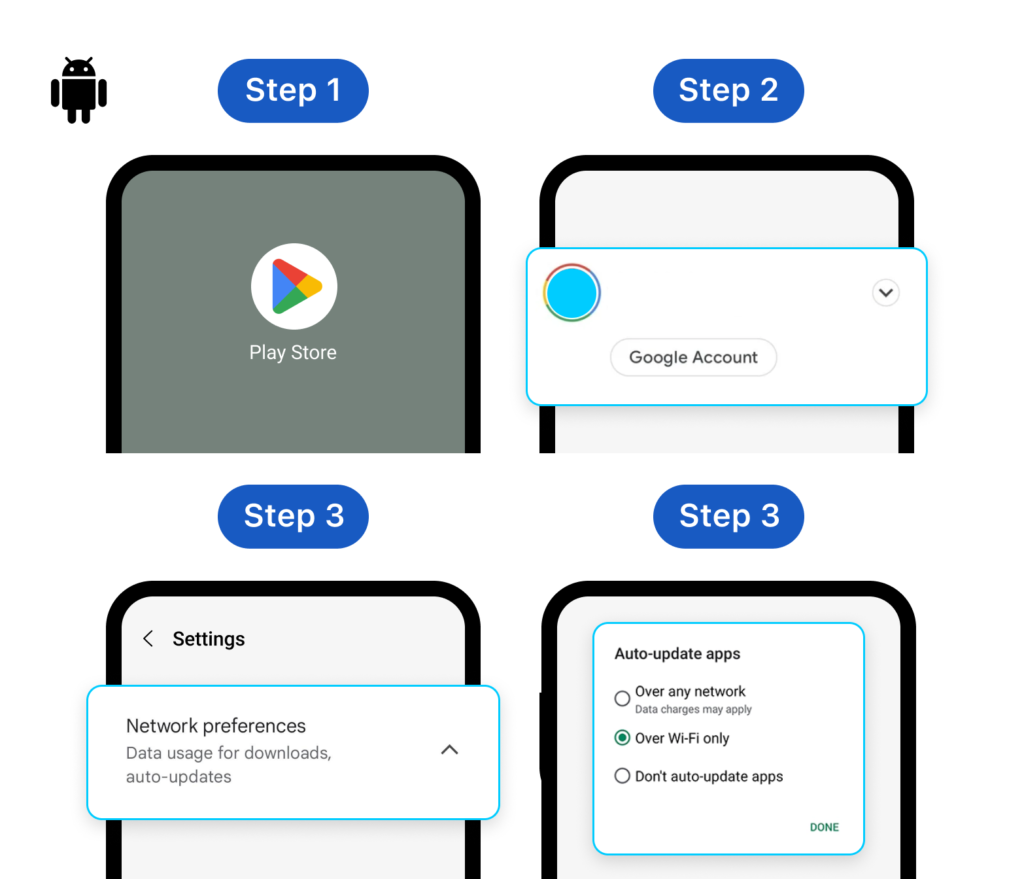
For Android
- Open Google Play Store → Tap your profile icon
- Go to Settings → Network Preferences → Auto-update apps
- Select Over Wi-Fi only or Don't auto-update apps
For iOS
Go to Settings → App Store → turn off App Updates under Mobile Data
Want to set a hard limit so your data doesn't run out unexpectedly? See How do I set a data limit on my Android device?