
1. Unable to scan the QR code
Method 1: Try holding your phone’s camera directly in front of the QR code and make sure the entire code is clearly visible on screen for accurate scanning
Method 2: If scanning the QR code doesn’t work, you can manually install the eSIM by entering the activation details provided in your eSIM Order Confirmation Email.
Method 3: Switch to a different Wi-Fi network, then try scanning and installing the eSIM QR code again
2. eSIM installed successfully but no signal bars are showing
Method 1: Please check if Data Roaming and Mobile Data are both enabled on your phone.
Method 2: Try restarting your phone or wait 5–10 minutes, as some networks may take a bit longer to activate
3. eSIM installed successfully but is showing “Activating…” or “Unable to Activate eSIM”
If you’ve installed the eSIM but it still shows ‘Activating...’ or ‘Unable to Activate eSIM’ while you’re in your home country. Don’t worry, this is completely normal.
Why? Your eSIM needs to connect to the mobile network in your destination country to fully activate.
Once you arrive at your destination, simply: Turn on Mobile Data & turn on Data Roaming, your eSIM will then activate and start working automatically,
4. eSIM shows signal bars but cannot connect to the internet
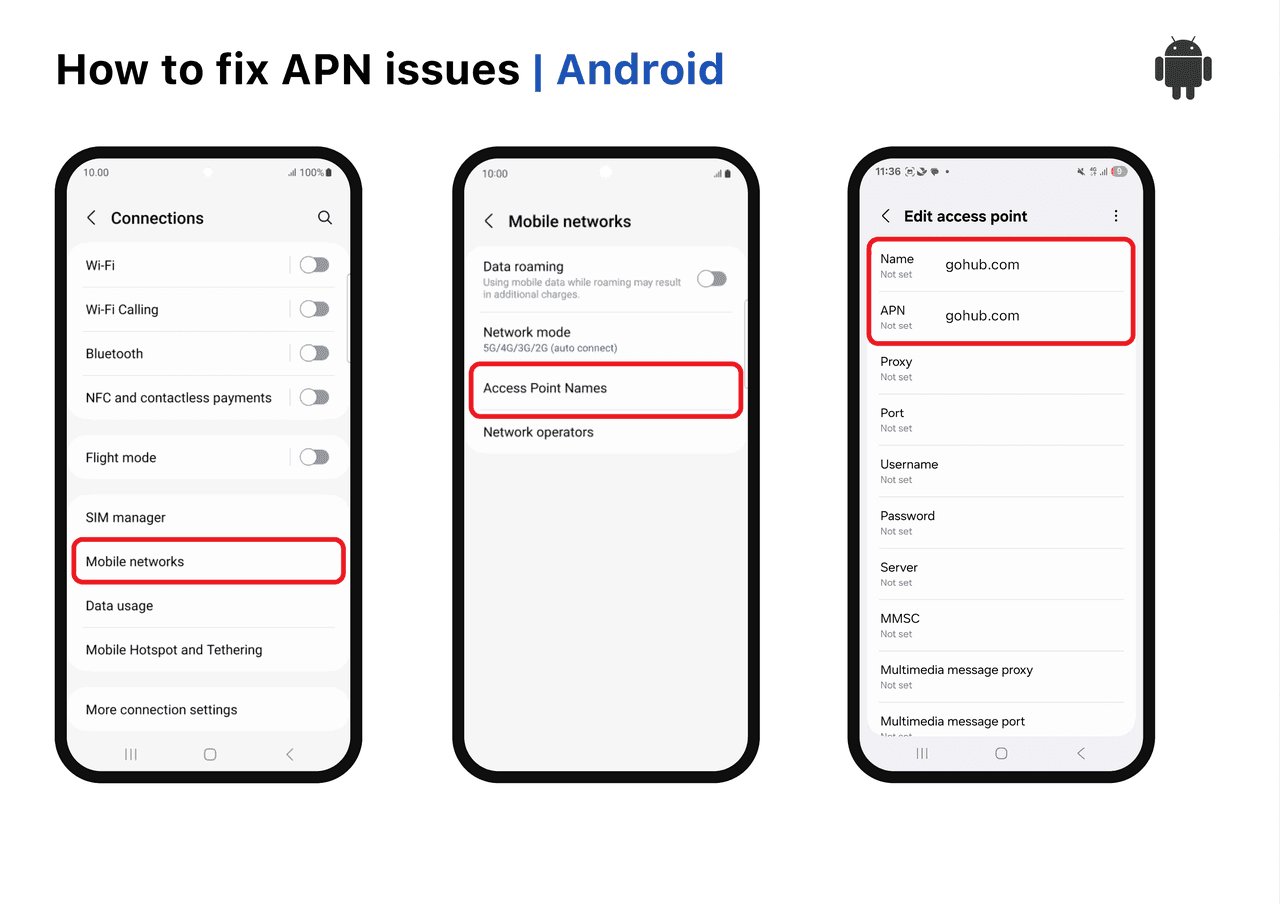
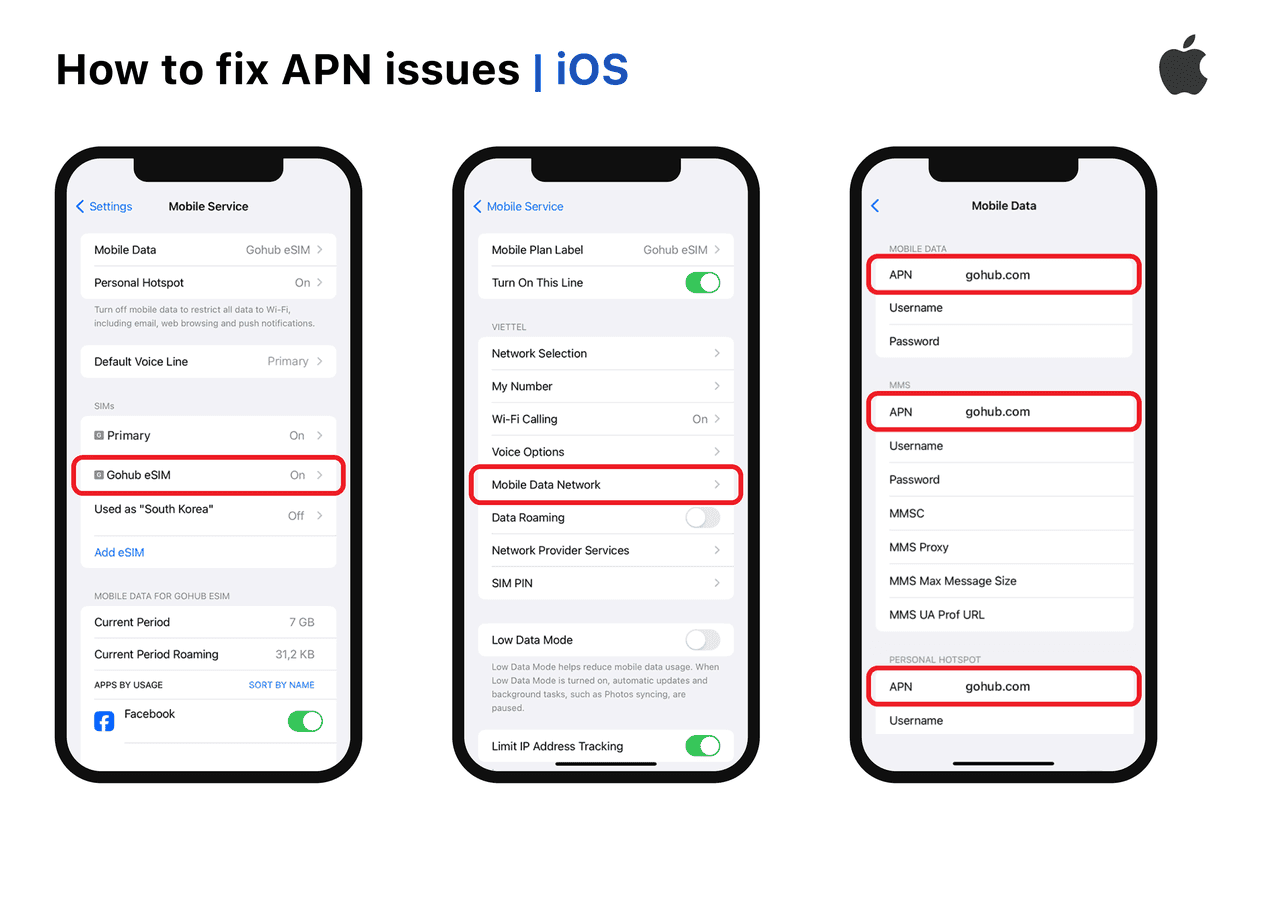
This may be an APN (Access Point Name) issue. Each eSIM may have a different APN setting. To get the correct APN for your specific eSIM, please contact Gohub Customer Support via WhatsApp: +1 (302) 899-2888 for detailed assistance.
4.1 For iOS
After receiving your APN information, go to Settings > Mobile Service > Select your eSIM > Mobile Data Network, then enter the APN details provided.
4.2 For Android
After receiving your eSIM APN information, go to Settings > Connections > Mobile networks > Access Point Names > Tap Add and enter the eSIM APN information you were provided.