

How to top up data on your Gohub eSIM
Running low on data mid-trip? Adding more takes about two minutes. Choose the option that suits you: top up from My eSIMs when you are signed in, or use your ICCID without an account.
A top-up pack is applied to the eSIM already installed on your device. There is no new QR code to scan and nothing to reinstall.
Two ways to top up
From your Gohub account
Recommended if you purchased the eSIM while signed in. My eSIMs lists every eSIM on your account together with its status and expiry date.
View the stepsUsing your ICCID
Recommended if you already have the ICCID on hand or checked out as a guest. Enter the number to go straight to the available packs.
View the stepsTop up from My eSIMs
Six steps, completed entirely within your Gohub account. Please sign in before you start.
- 1
Sign in to your Gohub account
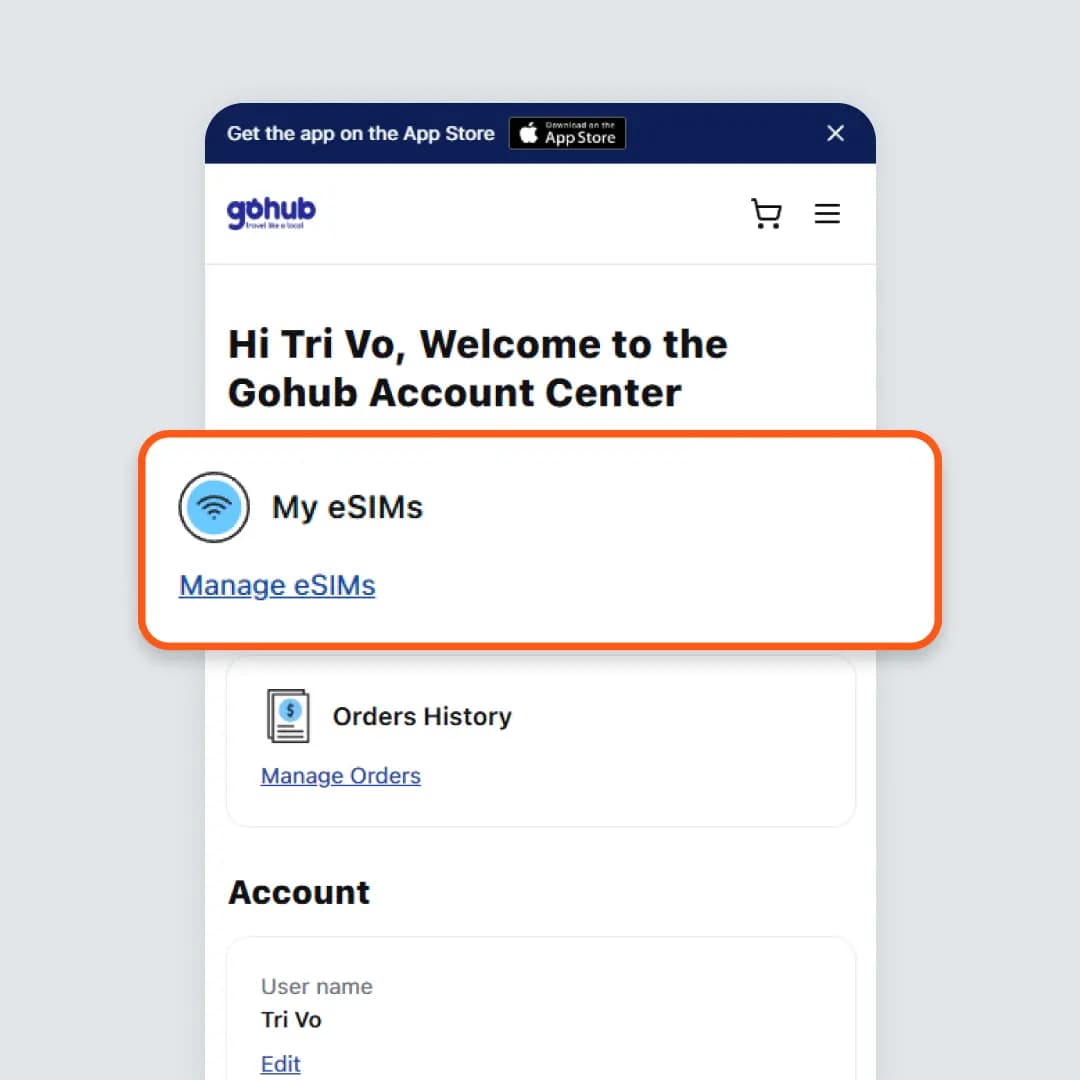
Sign in at gohub.com/login, then open Manage eSIMs under My eSIMs in your account.
- 2
Select the eSIM you want to top up
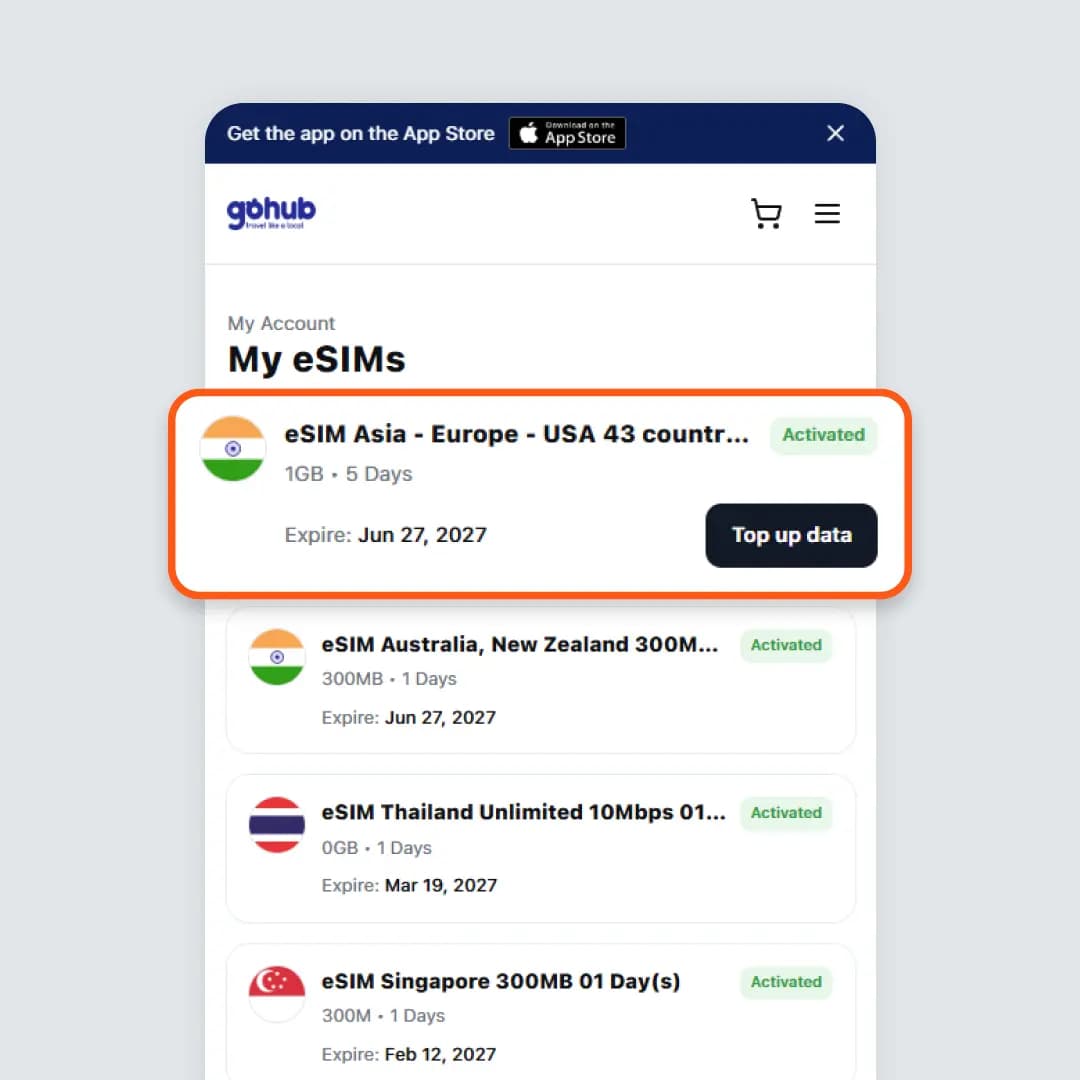
Open the eSIM you want to top up, or select Top up data directly on its card in the list.
- 3
Select Top up data on the eSIM detail page
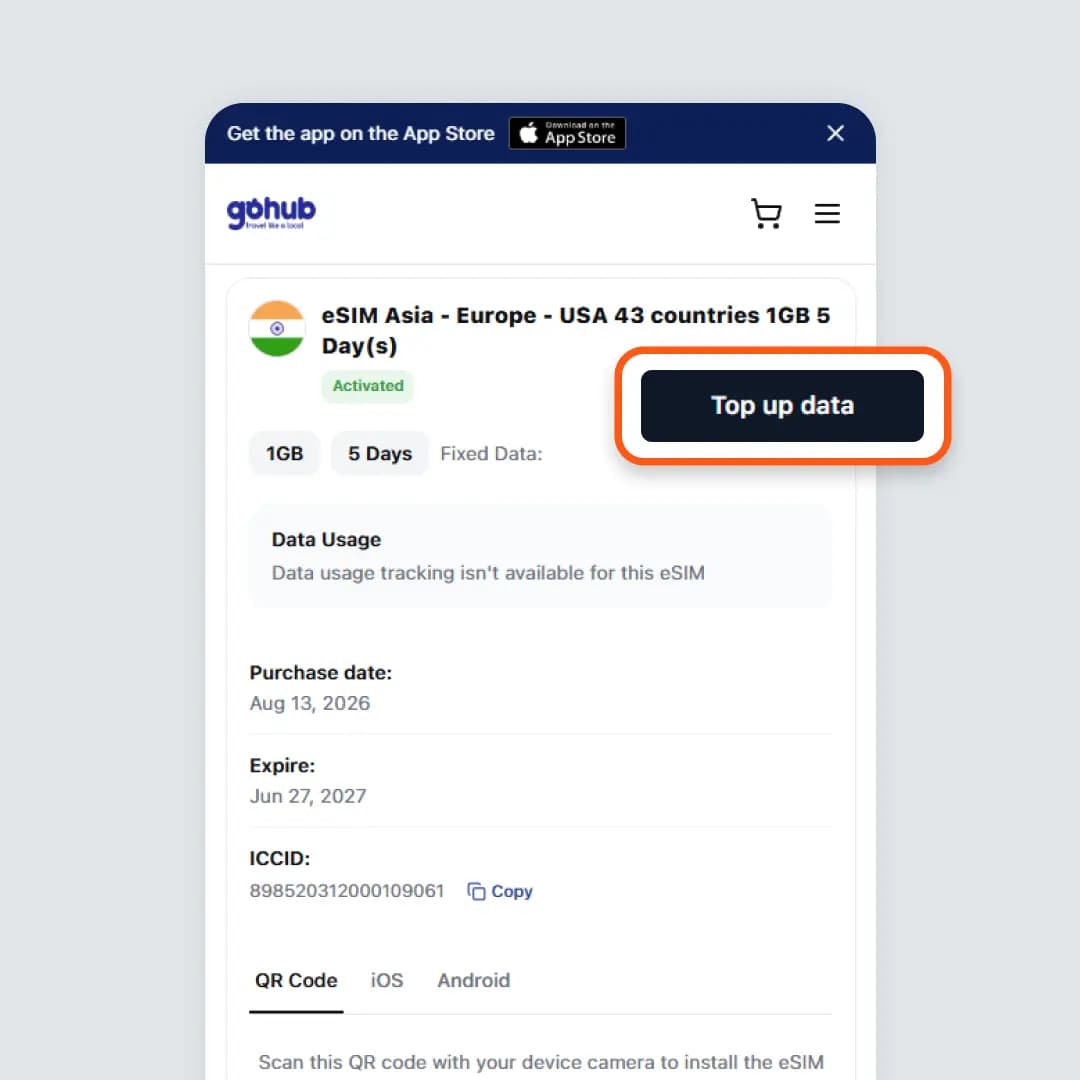
The Top up data button sits at the top of the page, next to the eSIM name. This page also shows the ICCID and the installation QR code.
- 4
Select a pack and continue to payment
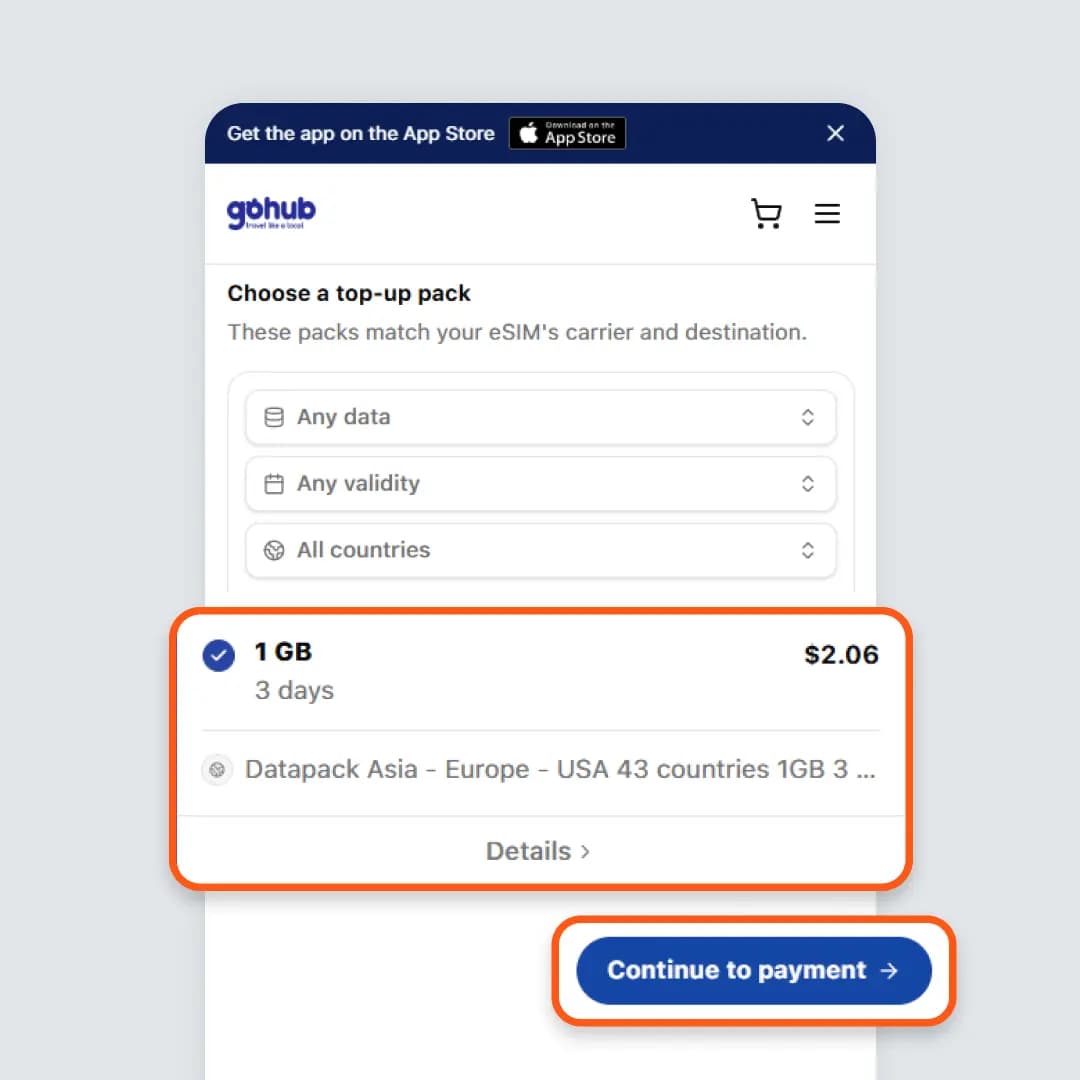
Only packs compatible with your eSIM's carrier and destination are listed. Filter by data size, validity or country, select a pack, then choose Continue to payment.
- 5
Complete the payment
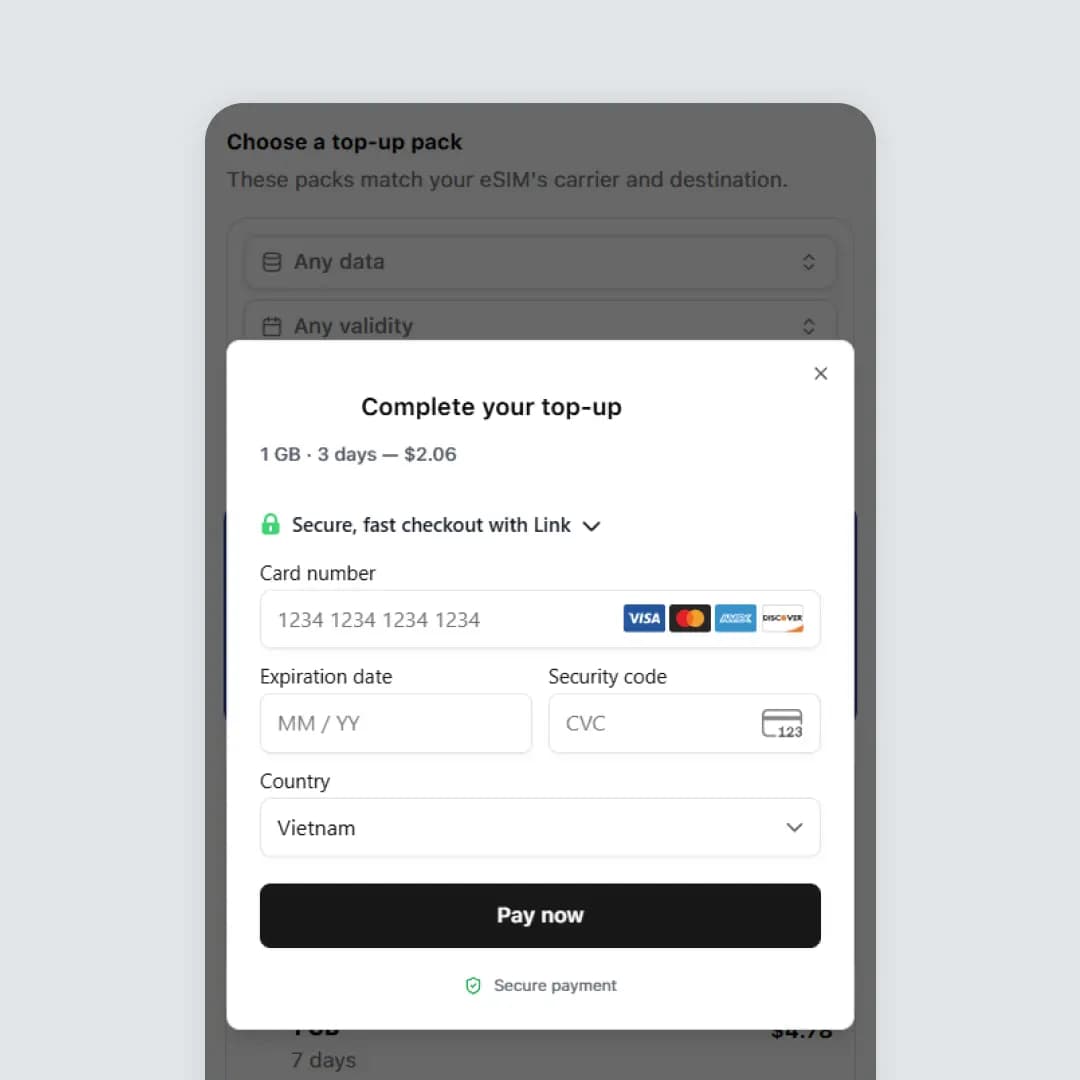
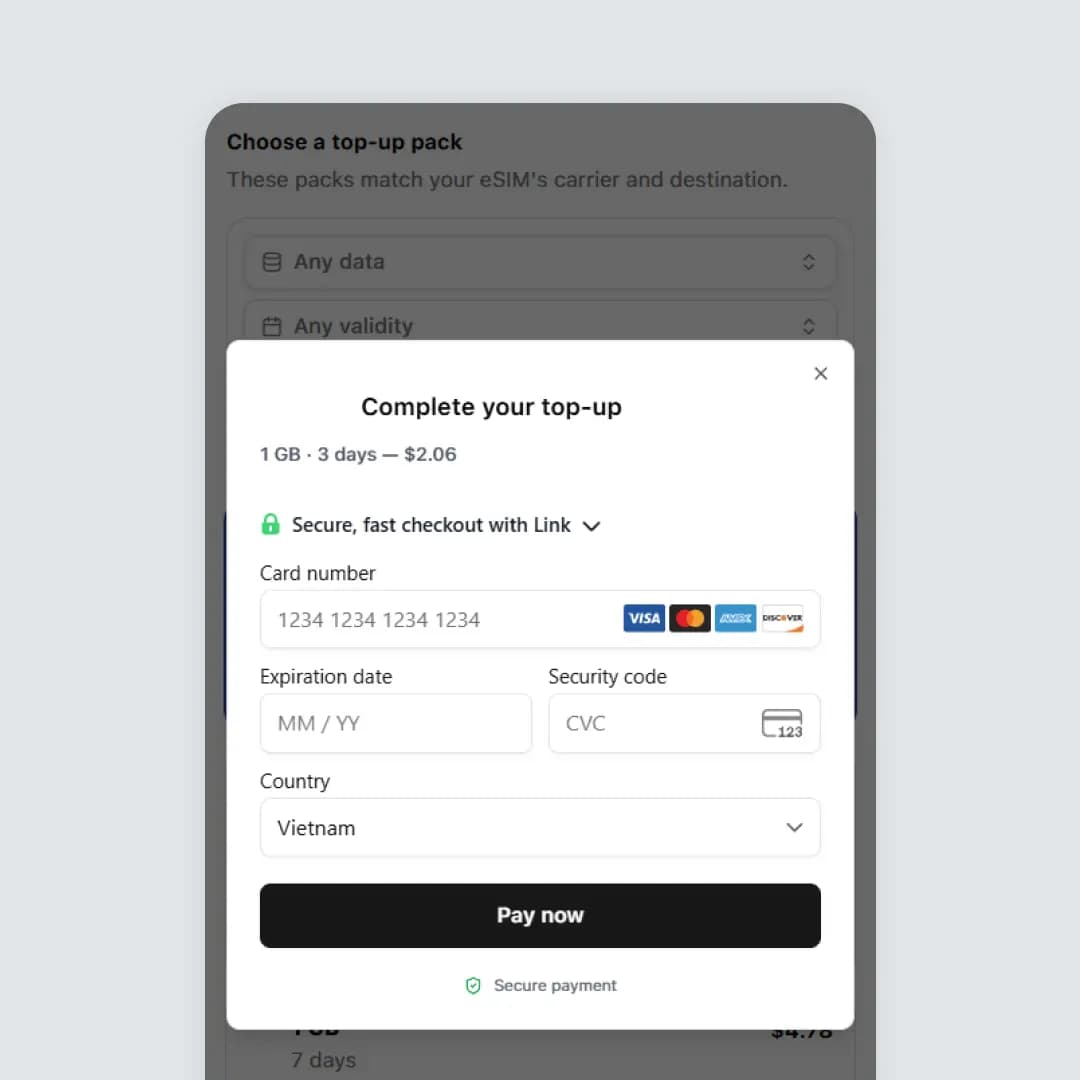
Enter your card details in the Complete your top-up window, or pay with Google Pay, then select Pay now. Payments are processed by our secure payment provider.
- 6
Receive your order confirmation
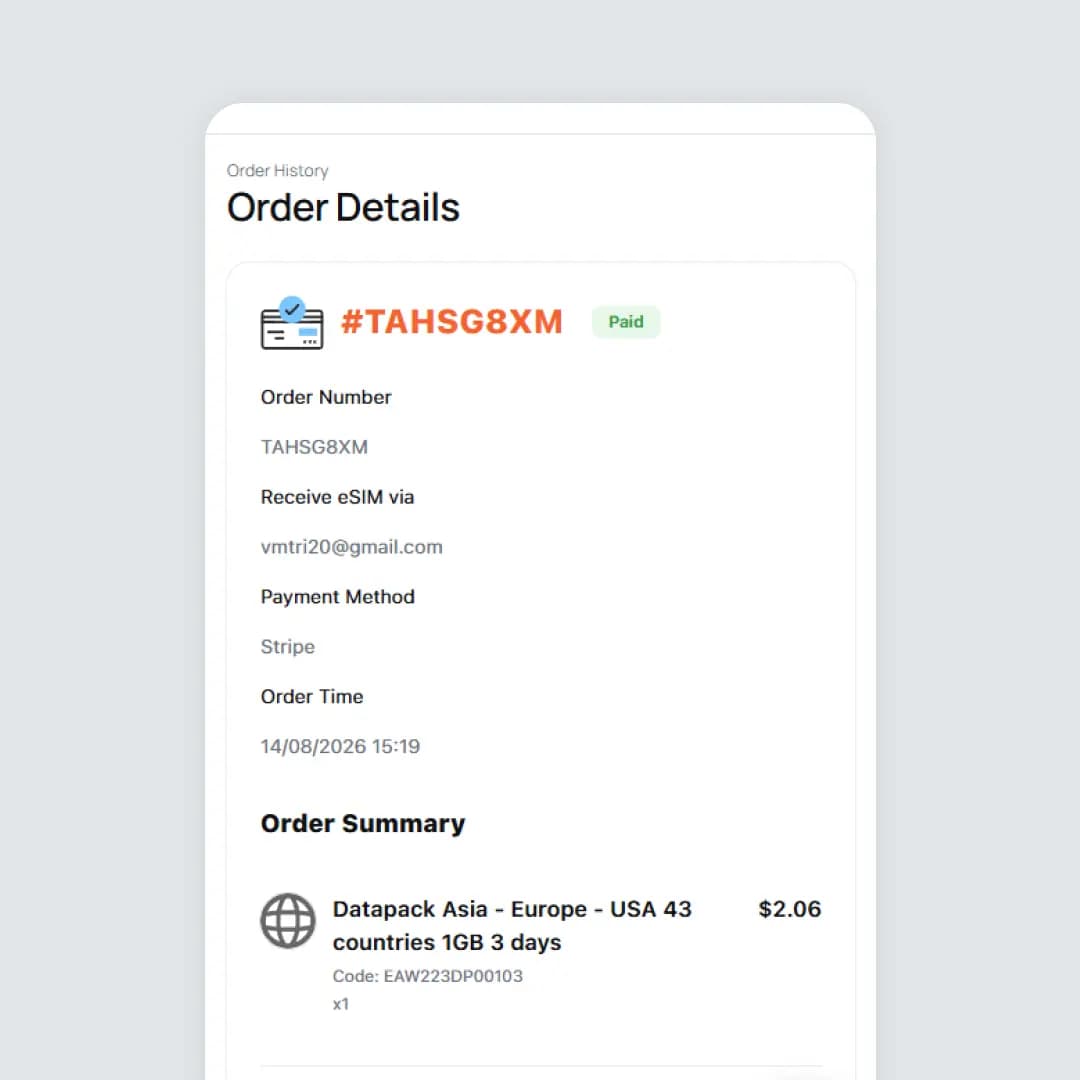
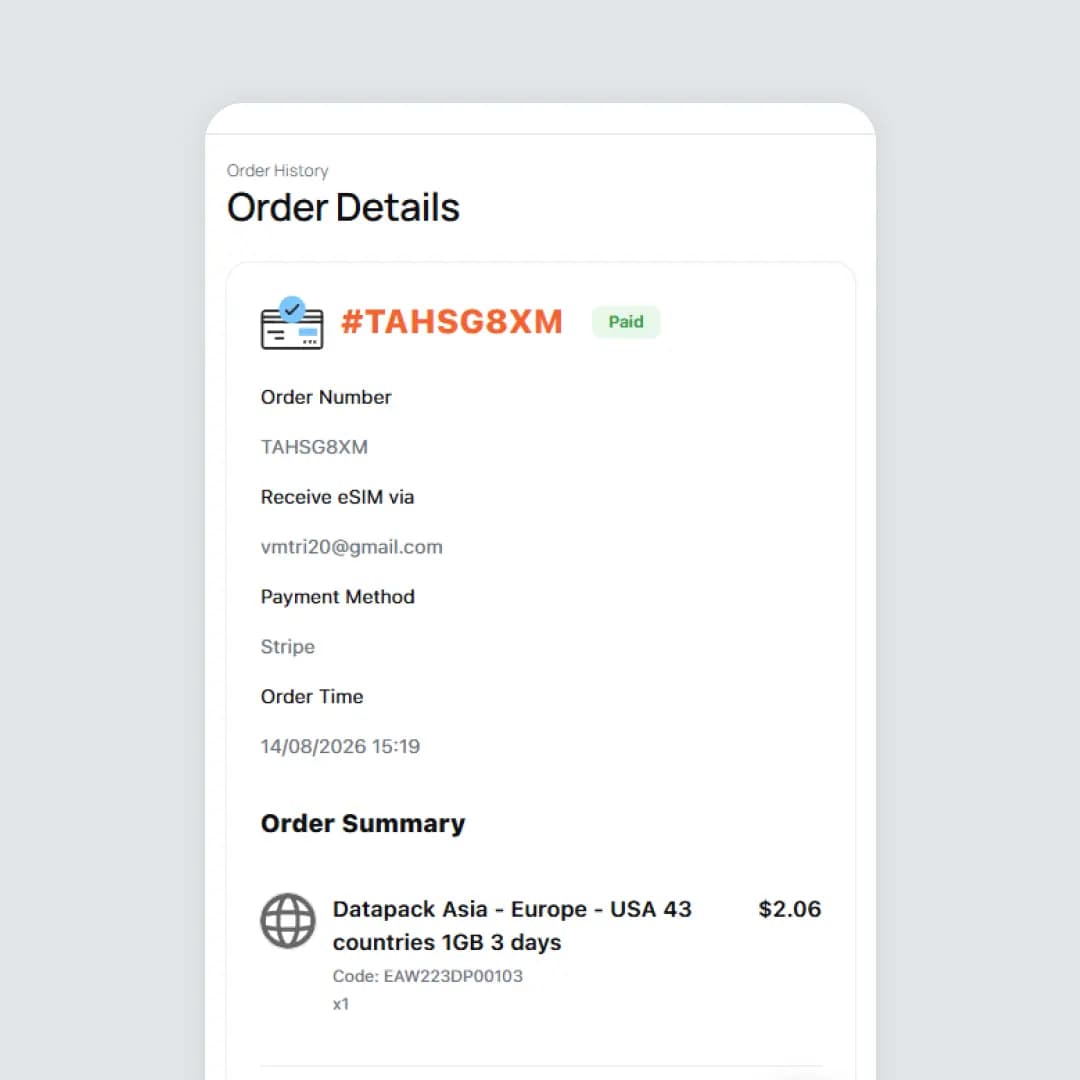
Once the payment is approved, the order details page opens with the status Paid. The data is added to the same eSIM automatically.
Top up with your ICCID, without signing in
Four steps. All you need is the 18 to 22 digit ICCID of your Gohub eSIM.
- 1
Enter your ICCID
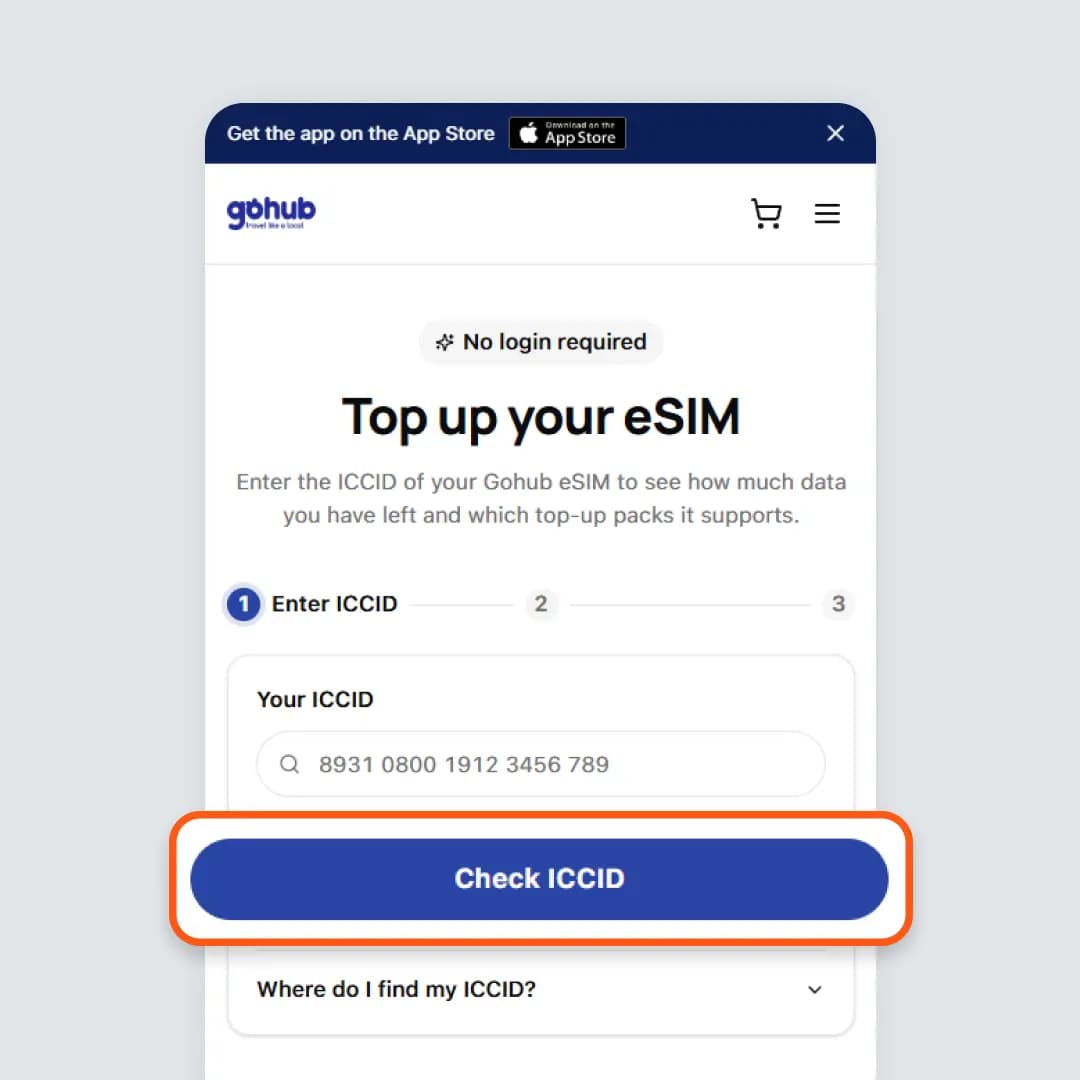
Go to gohub.com/topup, enter the ICCID of your eSIM and select Check ICCID. Spaces and dashes are accepted. If you are unsure where to find the number, open "Where do I find my ICCID?" below the input field.
- 2
Select a pack and continue to payment
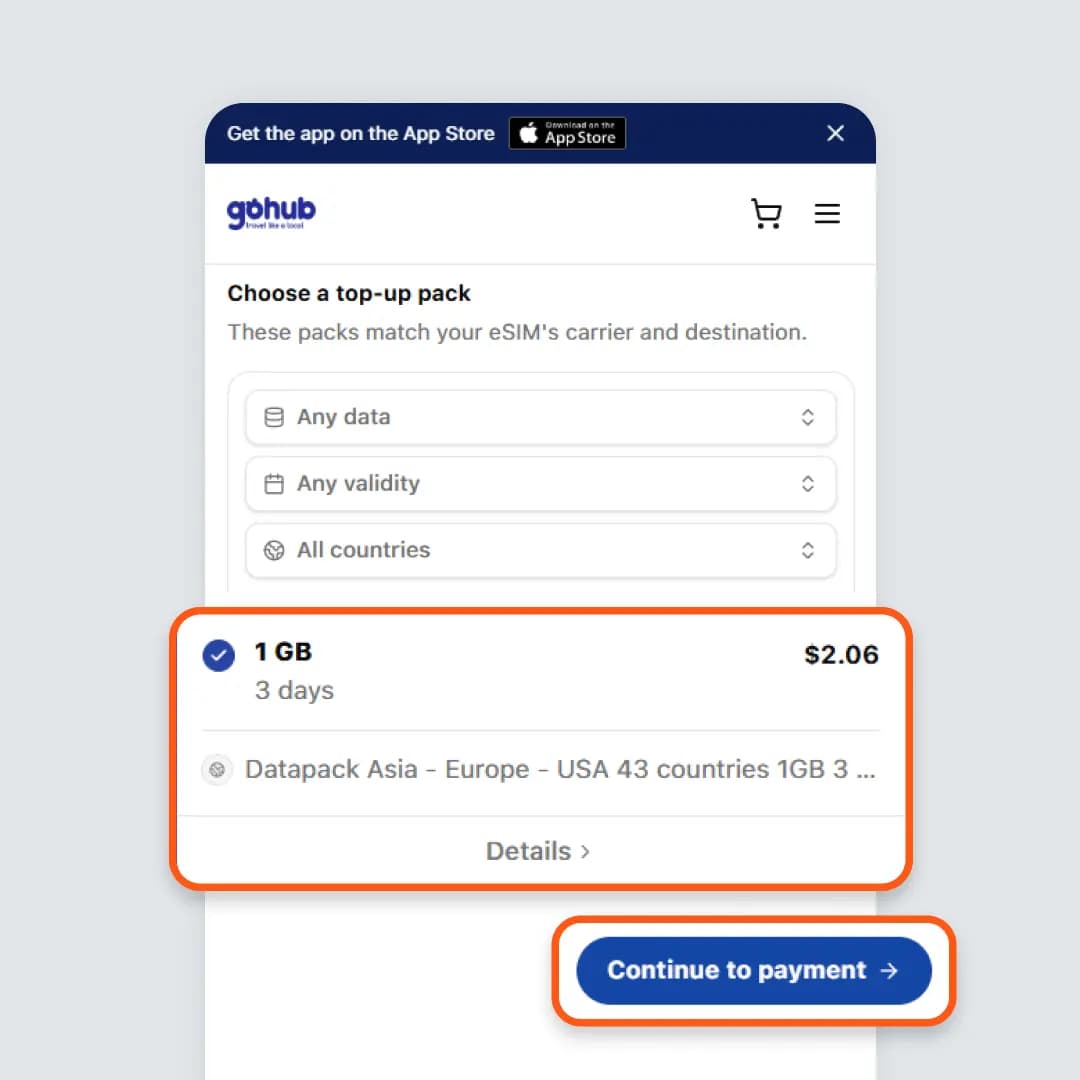
The packs supported by your eSIM are listed with their price and validity. Apply the filters you need, select a pack, then choose Continue to payment.
- 3
Complete the payment
Enter your card details or pay with Google Pay, then select Pay now. No account is created.
- 4
Receive your order confirmation
Once the payment is approved, the order details page opens and the pack is applied to your eSIM.
Good to know
Keep the eSIM installed on your device. Deleting it or installing a new QR code will leave the top-up with nowhere to go.
The pack list is filtered to your eSIM's carrier and destination, so every pack shown is compatible with your eSIM.
You can top up before your current pack runs out. The new pack starts once the current one is fully used or expires.
Every top-up is recorded in Orders History with the same invoice and support as any other order.
Frequently asked questions
The ICCID is shown on the eSIM detail page under My eSIMs, with a Copy button, and is included in the eSIM delivery email. It is also available in your device's eSIM settings.
The list is limited to packs matching your eSIM's carrier and destination, so an incompatible pack cannot be purchased. Use the data, validity and country filters to narrow the results.
Immediately after payment. If your current pack is still running, the top-up is queued and starts once the current pack is fully used or expires.
Yes. Use Method 2: go to gohub.com/topup and enter the ICCID from your eSIM delivery email. No account is required.
No charge is made when a payment fails. Please try again, use another card, or pay with Google Pay. If the problem persists, contact our team on WhatsApp 24/7 and we will complete the top-up for you.
Ready to top up?
Add data to your eSIM in about two minutes, from your account or directly with your ICCID.